
How To Remove The Password From An Excel File
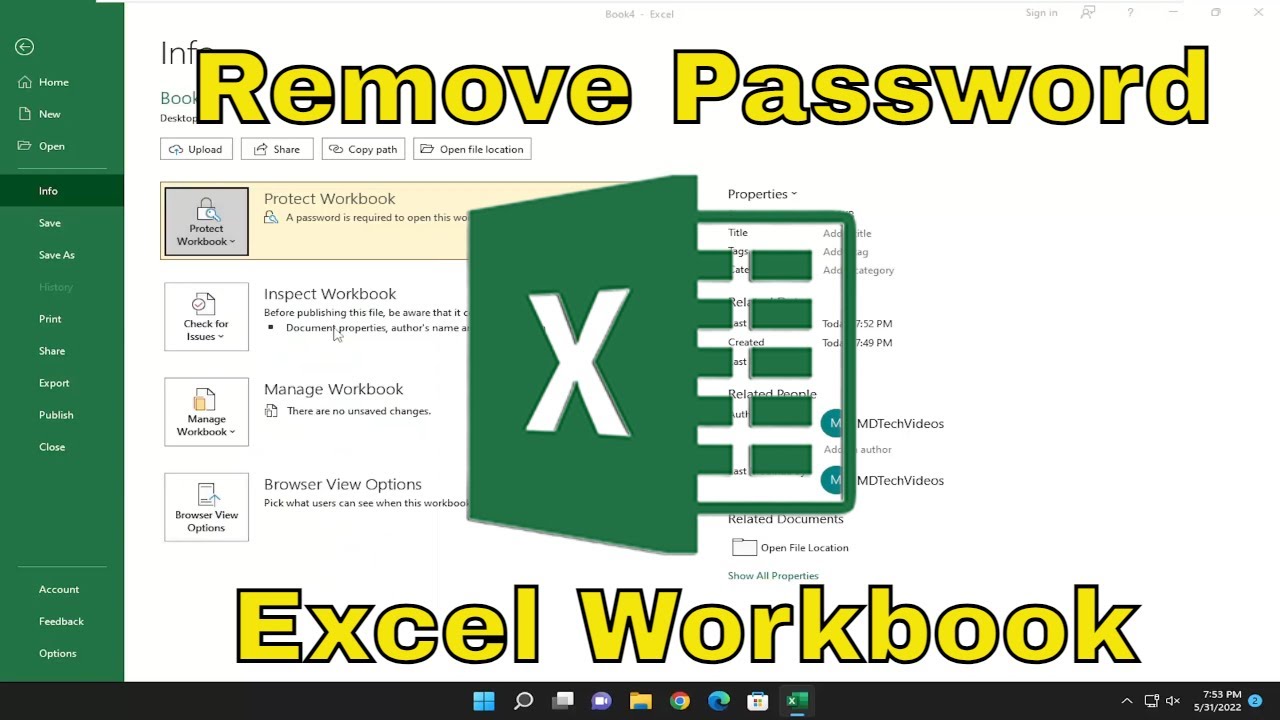
So, you’ve stumbled upon an Excel file. It’s locked tighter than a drum. A password stands between you and… well, whatever secrets it holds!
Maybe it’s your own old file. You swear you wrote down that password. Somewhere. Probably on a sticky note. Or maybe it’s a file someone else sent you, and they’ve suddenly gone radio silent. Poof! Gone!
Whatever the reason, let’s chat about how to unlock those digital treasure chests. It’s not about breaking and entering, folks. It’s more like… a gentle nudge. A clever workaround. Think of yourself as a digital locksmith, but way cooler.

Why Is This Even a Thing?
Companies lock files for security. And you, dear friend, might lock them to protect your super-secret cookie recipe. Or maybe you just want to prevent accidental deletions. We’ve all been there. Click-click-BOOM. Gone forever.
But sometimes, passwords become like that one song you hated in high school. It keeps coming back, and you can’t get rid of it. Except this song is a locked Excel file.
The fun part? It’s a little like a puzzle. A digital brain teaser. And who doesn’t love a good puzzle?
The "Oh, I Forgot" Scenario
This is the most common one. You’re sitting there, staring at the password prompt, feeling a bit silly. Your brain is doing Olympic-level gymnastics, trying to recall that magical sequence of characters.
Did it have a capital letter? Was there a number? A special symbol? Was it your cat’s name backwards? The possibilities are endless and, frankly, exhausting.
Before you panic and declare the file lost to the digital abyss, let’s explore some options. It’s usually not as complicated as you think.
Method 1: The "Did I Try Everything?" Approach (aka Brute Force Lite)
Okay, we’re not actually going to sit there and try every single password in the universe. That would take… forever. And frankly, your fingers would fall off.
But sometimes, the simplest things work. Did you try:
- Common passwords: "password", "123456", your birthday (year included)? A little embarrassing, but worth a shot.
- Your username or company name? If it’s a work file.
- Your pet’s name? Or your kids’ names?
- A simple variation: "Password123" instead of "password".
It’s like trying the most obvious keys first. Sometimes, that’s all it takes.
Method 2: The "It’s Not That Secret" Workaround (for Sheet Protection)
Sometimes, the password isn’t for the entire file. It’s just protecting a specific worksheet. You know, so you don’t accidentally mess up that fancy formatting you spent hours on.
This is where things get a little more… intriguing. And honestly, kind of fun.
Here’s a quirky fact: Excel worksheets are, at their core, ZIP files. Yep, just like the ones you use to compress music or photos. Mind. Blown.
So, what does this mean? It means we can play with the insides!
Step-by-Step Shenanigans
Step 1: Make a Copy! Seriously. Always, always, always make a copy of the file before you start messing with it. We don’t want to make a bad situation worse. Think of it as your “undo” button, but external.
Step 2: Rename the Copy. This is where the magic starts. Change the file extension from `.xlsx` (or `.xlsm`) to `.zip`. So, `MySecrets.xlsx` becomes `MySecrets.zip`.
Step 3: Open the ZIP File. Treat it like any other compressed folder. You’ll see a bunch of other files and folders inside. Don’t get overwhelmed! We’re only interested in one place.
Step 4: Navigate to the `xl` Folder. Inside the ZIP, find the `xl` folder. Open it.
Step 5: Find the `worksheets` Folder. Inside `xl`, you’ll see another folder called `worksheets`. Open that one.
Step 6: The Moment of Truth. Here, you’ll find files named `sheet1.xml`, `sheet2.xml`, and so on. These are the XML files that define your worksheets. The one you want to unlock will correspond to the sheet that’s password protected.
Step 7: Open the XML File. Open the relevant `.xml` file with a text editor. Notepad on Windows or TextEdit on Mac will do just fine. This is where you'll see all the raw data and formatting instructions for your sheet.
Step 8: The Hunt for the Password Tag. Now, this is the fun part. You need to look for a specific tag. It looks something like this: `
Step 9: Delete the Tag. This is the ultimate power move. Carefully delete the entire `
Step 10: Save and Re-ZIP. Save the `.xml` file. Then, go back to your ZIP archive. You’ll need to replace the old `.xml` file with your modified one. Most ZIP programs allow you to just drag and drop the new file in and confirm replacement.
Step 11: Rename Back. Change the `.zip` extension back to `.xlsx` (or whatever it was originally).
Step 12: Open the Excel File. Ta-da! You should now be able to access your worksheet without a password. How cool is that? You just manipulated the inner workings of Excel!
It’s like being a secret agent, but your mission is to retrieve lost cookie recipes. Much tastier.
Method 3: The "Help Me Out Here!" Approach (for Workbook Protection)
What if the entire workbook is locked? This is a bit trickier. This usually prevents you from adding or deleting sheets, or changing the overall structure.
This is where things get a tad more technical. And sometimes, the easiest way is to use a third-party tool. There are tons of them out there.
Some are free, some are paid. Do your research! You don’t want to download something dodgy that’s going to infect your computer with… well, more problems than you started with.
Look for tools specifically designed to remove Excel workbook passwords. They often use more advanced techniques to crack the password. Think of them as the heavy-duty tools for more stubborn locks.
A Word of Caution (Don’t worry, it’s a quick one!)
When dealing with passwords, it’s always good to remember that if you’re trying to access a file that isn’t yours, and you don’t have permission, that’s… well, not great. Be ethical, folks!
This is for those "oops, I forgot" moments, or for files where you should have access but the password has gone rogue.
The beauty of the `.zip` method for sheet protection is that it's built on a clever understanding of how Excel files are structured. It’s not really "cracking" in the malicious sense, but rather exploiting a known characteristic.
And honestly, figuring out how these things work is just plain interesting. It’s like peeking behind the curtain and seeing the Wizard of Oz isn't that powerful after all.
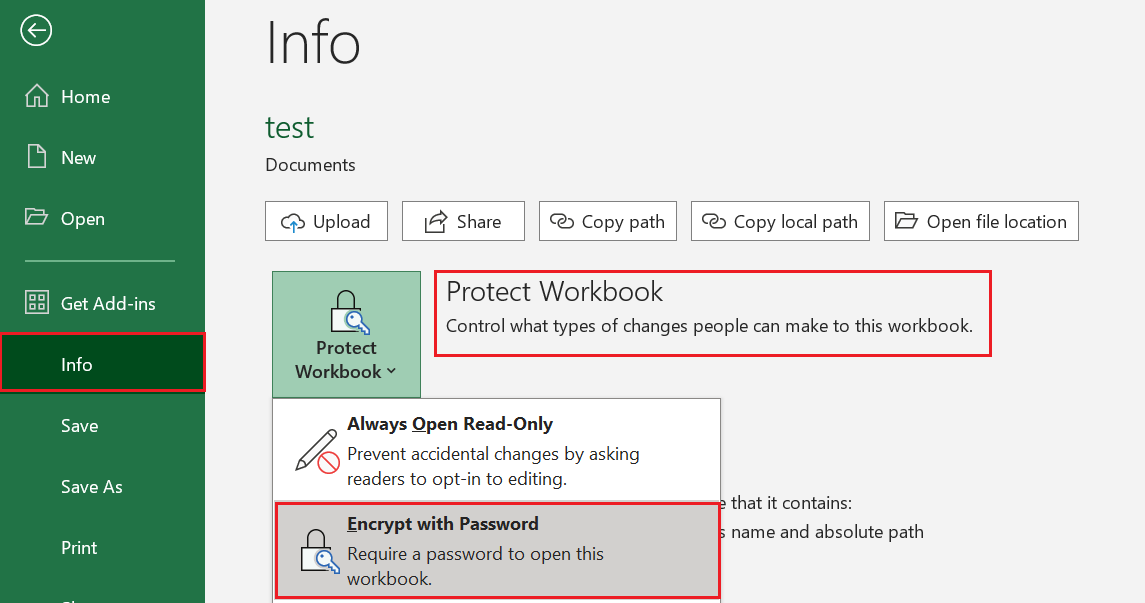
So, next time you encounter a locked Excel file, don’t despair. You’ve got a few tricks up your sleeve now. Go forth, and unlock those spreadsheets! Just try not to lose your own password in the process.